As Amazon Associates, we earn from qualifying purchases. This means we may receive a small commission at no extra cost to you if you click through and make a purchase.
Managing an untethered 3D printer often involves a repetitive cycle of inserting memory cards into a computer, exporting G-code, walking across the room, and plugging the card into the machine. The Creality Wi-Fi Box 2.0 aims to eliminate that physical routine by acting as a dedicated bridge between your printer and mobile devices. If you want to start prints, track progress remotely, and browse online model repositories without running long cables or setting up a dedicated desktop computer next to your workbench, this hardware accessory provides a focused solution. It is designed for makers who want an off-the-shelf appliance for cloud slicing and mobile monitoring rather than a complex single-board computer setup requiring command-line configuration.
Choosing to add a wireless 3d print server to your printing station requires an understanding of what the unit handles natively and where its operational boundaries lie. While the hardware offers network bridging, mobile slice processing, and remote status feedback, it relies on mobile application connectivity and dedicated cloud infrastructure to execute its primary tasks. In this evaluation, we break down the device specifications, examine the setup process, review time-lapse and monitoring capabilities, address common troubleshooting hurdles, and evaluate alternative networking equipment so you can determine if this accessory fits your printing workflow.
What You Get With the Creality Wi-Fi Box 2.0
Creality Wi-Fi Box 2.0

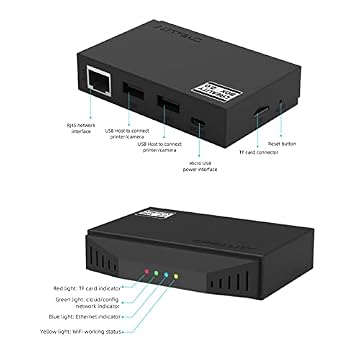


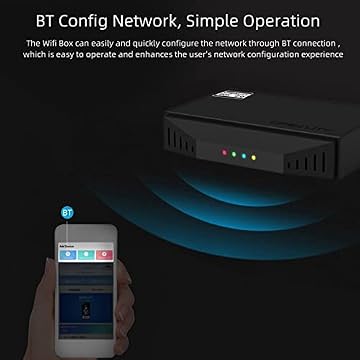
Photographs published on the Amazon listing.
The package contains the essential hardware components required to power the print server, connect it to your printer, and establish local storage for print files. The manufacturer includes the primary interface cables alongside dedicated memory so you can immediately begin installation.
- Wi Fi Box 2.0 main control unit constructed from black ABS plastic
- Two USB connection cables for linking the unit to your printer and peripheral devices
- One dedicated power adapter delivering 5V and 2.4A DC input
- One 8GB TF memory card for local storage and operating data management
- One quick start guide outlining initial connection and pairing steps
- Integrated Bluetooth 4.0 hardware module for network configuration
- Integrated 2.4GHz 802.11 b/g/n wireless networking and adaptive 10/100M Ethernet port
Key Specifications
Specification Attribute
Manufacturer Detail
- Model Name
- Wi fi Box 2.0 (Part Number Sunydog YRICHOS6383BXUS)
- Manufacturer / Brand
- Sunydog
- Hardware Dimensions
- 90 x 64 x 20 mm (5.12 x 3.74 x 2.09 inches listed package unit)
- Net Hardware Weight
- 60 grams (2.12 ounces)
- Enclosure Material
- ABS plastic in black finish
- Power Requirements
- DC 5V, 2.4A input current
- USB Interface
- 2 x USB 2.0 Host Type-A ports
- Wired Network Connectivity
- RJ45 Ethernet port supporting 10M/100M adaptive speeds
- Wireless Network Connectivity
- Wi-Fi 802.11 b/g/n at 2.4GHz
- Configuration Protocol
- Bluetooth 4.0 (BT4.0)
- Included Local Storage
- 8GB TF card included in package
Copied from the Amazon listing. These figures were not measured here.
Network Connectivity and Creality Wi-Fi Box Setup
The onboarding experience for network accessories frequently dictates whether they remain permanent workshop fixtures or end up stored in a drawer. The creality wi-fi box setup process utilizes built-in Bluetooth 4.0 to smooth out the initial pairing handshake between your smartphone and the hardware. Rather than requiring users to manually disconnect their phones from home internet to join a temporary ad-hoc Wi-Fi access point broadcast by the box, the Bluetooth connection negotiates credentials directly. Through the companion Android-compatible mobile application, the user transmits home network credentials to the device, which then connects to the local wireless access point.
Network environment compatibility is a critical detail to evaluate prior to deployment. The hardware radio operates exclusively on 2.4GHz Wi-Fi frequencies using the 802.11 b/g/n standards, meaning modern 5GHz-only networks cannot communicate directly with the device. If your home network uses a dual-band mesh setup with combined network names, ensuring the box attaches to the 2.4GHz channel is vital for maintaining an uninterrupted connection. For workshops experiencing signal congestion or high interference from machinery, the unit includes an RJ45 Ethernet port that supports 10M/100M adaptive wired connections. Opting for a physical network cable bypasses wireless interference entirely and delivers lower latency for continuous communication with the printer controller board.
Physical installation requires minimal space on your workbench or enclosure frame. With a footprint measuring 90 by 64 millimeters and a height of only 20 millimeters, the ABS chassis easily mounts near the printer control box using standard double-sided tape or adjacent bracket shelves. Power delivery requires the included DC 5V 2.4A adapter, ensuring the device receives stable voltage separate from the 3D printer power supply unit. Separating the computing unit power from the stepper motor rails prevents unexpected brownouts or voltage drops during rapid axis movements, which could otherwise sever wireless connectivity mid-job.
Creality Cloud Remote Printing and Monitoring Workflow
The primary attraction of a dedicated wireless print server is transitioning away from physical storage media transfers. Under the creality cloud remote printing architecture, the box acts as a communications relay between the printer controller and remote cloud servers. Once paired, users can browse digital model repositories within the Cloud application, configure slicing settings using remote computing resources, and beam the resulting toolpaths directly to the printer memory card. This workflow removes the necessity of running a full desktop slicing suite when producing standard models or quick hobby prints from a mobile device.

During active fabrication jobs, the system provides status reporting back to the application interface. Users can inspect current nozzle temperatures, heated bed readouts, job progress percentages, and remaining print durations from anywhere with an active mobile data connection. If an issue occurs or an error is detected mid-print, commands can pause or abort the job directly from the interface. For makers operating alongside other advanced fabrication tools, like a creality falcon 2 40w cutter or auxiliary equipment, centralizing mobile status alerts significantly improves workshop productivity and reduces time spent pacing between stations.
Another prominent feature integrated into the software platform is the automated printing log upload. The unit registers operational events, job completion milestones, and transmission states during every task. If an unexpected print failure or communication interruption occurs, the user can transmit the diagnostic history file to remote support channels with a single click. This diagnostic logging provides documentation for maintenance analysis without requiring the user to extract raw serial output or debug files manually through a terminal emulator.
Hardware Interfaces and Camera Support Capabilities
Examining the physical connectivity of the creality wi-fi box for 3d printer setups reveals how the unit interacts with your printing ecosystem. Reviewing the creality wi-fi box specs shows that the rear and side flanks of the 60-gram chassis provide two USB 2.0 Type-A host ports alongside the micro TF memory card slot. One USB port connects directly to the printer mainboard via the supplied USB communication cable, serving as the bi-directional serial pipe for G-code commands and telemetry data. The included 8GB TF card seats into the integrated slot to buffer received print instructions, ensuring that brief network latency hiccups do not starve the printer buffer of directional commands.
The secondary USB 2.0 port allows users to evaluate creality wifi box camera support. By attaching an external USB web camera, the box can capture visual data from the build plate to provide live video streaming inside the mobile application. This visual verification enables users to spot filament tangles, warping corners, or detached adhesion layers without physically entering the print room. While the listing notes that the camera itself is not bundled inside this standard package, the dual USB 2.0 host architecture provides the requisite interface bandwidth for transmitting digital video signals alongside G-code data streams.
When an optical sensor or USB webcam is connected, users can leverage the creality wifi box time lapse recording functionality. The firmware triggers periodic still captures at fixed intervals or layer changes, compiling the frames into a progressive record of the physical part rising from the build plate. The listing highlights that these generated time-lapse videos back up automatically to cloud storage, where owners can view, review, and download the finished media. This automation replaces manual tripod photography rigs and standalone camera timers with an integrated, hands-off imaging workflow.
Creality Wi-Fi Box Troubleshooting and Operational Realities
Operating a network-connected peripheral in a busy wireless environment occasionally introduces friction that demands structured creality wi-fi box troubleshooting. The most frequent connection failures stem from network frequency mismatches during initial onboarding. Because the internal receiver is limited to 2.4GHz wireless bands, routers that automatically broadcast unified 2.4GHz and 5GHz signals under a single network name can cause the box to drop the configuration handshake. Separating the network bands temporarily or establishing a dedicated 2.4GHz guest network often resolves persistent pairing timeouts immediately.
Signal strength and antenna placement also influence continuous reliability. Because the compact ABS enclosure relies on an internal antenna structure rather than external high-gain dipoles, placing the unit inside a metal printer enclosure or behind a dense metallic frame can degrade reception. If you experience mid-print disconnections or stuttering video streams, relocating the box to an open surface or transitioning to a direct RJ45 Ethernet cable ensures uninterrupted data flow. Maintaining a clean 8GB TF card formatted correctly also prevents buffering lockups when receiving large multi-megabyte G-code files over the network.
Understanding the difference between cloud-dependent architectures and local network servers is vital when planning your setup. While comprehensive comparisons in our creality wifi box breakdown explore legacy iterations, this version requires an active internet connection to communicate between the mobile device and the box. If your workshop operates off-grid or lacks continuous broadband access, commands cannot be dispatched locally across an isolated intranet. Ensuring reliable internet connectivity is paramount to prevent remote queue stalls during unattended print runs.
Creality Wi-Fi Box 2.0 Pros and Cons
Pros
- Bluetooth pairing for quick network configuration
- Dual USB 2.0 host ports for printer and webcam
- Compact ABS shell weighing only 60 grams
- Included 8GB TF card and power adapter
- Automated cloud-backed time-lapse recording
Cons
- Limited to 2.4GHz Wi-Fi networks
- Requires cloud app connectivity rather than local control
- USB webcam not included in standard package
Check Creality Wi-Fi Box 2.0 on Amazon
Is the Creality Wi-Fi Box 2.0 Worth It
Determining whether the Creality Wi-Fi Box is worth it comes down to how you prefer to slice and manage your physical builds. For hobbyists, students, and casual 3D printing enthusiasts who find micro SD card swapping tedious, the unit offers a convenient, low-effort pathway to remote control. The integration of Bluetooth pairing, mobile cloud slicing, and automated time-lapse storage delivers an accessible mobile-first experience without requiring any familiarity with Linux terminal commands, disk imaging, or custom firmware flashing.
Conversely, experienced makers who demand advanced local network control, detailed custom slicing profiles in desktop applications, or offline network operation may find the cloud-centric ecosystem restrictive. Power users managing high-speed machines or specialized multi-tool setups—such as those operating a multi-filament system like the creality sparkx i7 combo 3d printer—often prefer full desktop slicing precision and direct local web interfaces. If your workflow relies on tight offline security or custom plugin ecosystems, a standard cloud relay box might not provide the exact granular control you seek.
For educational classrooms, shared home studios, and everyday makers seeking simplicity, the hardware delivers clear convenience. Having dual USB ports, included accessories like the 8GB TF memory card and power adapter, and flexible Ethernet or Wi-Fi connectivity creates a neat, all-in-one package. It simplifies machine monitoring and democratizes remote 3D printing for users who prioritize ease of use over complex custom configurations.
Other Options to Consider
Network Print Server suits network administrators and office environments requiring a dedicated StarTech 1-port USB 2.0 wired Ethernet LAN adapter with 10/100Mbps throughput and TAA compliance, serving users who want standardized wired network printing without cloud dependency or mobile app requirements.

IOGEAR 1-Port USB 2.0 Print is ideal for home office setups that need a straightforward, compact single-port hardware server (GPSU21) to share standard wired document printers over an existing local area network without requiring 3D printing cloud features or specialized mobile firmware.
Wireless Print Server for USB serves multi-platform workshop owners running Windows, Mac, or Linux systems who need a dual-port USB print server (model CR202) capable of converting wired USB printers into wireless Wi-Fi and Ethernet network devices, offering an alternative for users managing general office peripherals across mixed operating systems.
FAQ
Does the Creality Wi-Fi Box 2.0 support 5GHz wireless networks?
No, the hardware network radio strictly supports 2.4GHz frequencies under the Wi-Fi 802.11 b/g/n standards. If your router uses dual-band technology, you must connect the device to the 2.4GHz wireless band, or use the integrated RJ45 Ethernet port for a direct wired 10/100M connection.
What is included in the package with the print server?
The standard manufacturer package includes one Wi-Fi Box 2.0 unit, two USB connection cables, one dedicated DC 5V 2.4A power adapter, one 8GB TF card for local memory storage, and one quick start guide to assist with the setup procedure.
Can you capture time-lapse videos without an extra camera?
No, recording video footage or generating automated time-lapse sequences requires connecting a compatible external USB camera to one of the USB 2.0 host ports on the box. The listing notes that the camera is sold separately and is not included inside the standard hardware package.
How do you configure the device on your home network?
The unit features integrated Bluetooth 4.0 technology to streamline network configuration. Using the companion mobile app on an Android device, you connect to the box via Bluetooth to pass your local Wi-Fi credentials directly to the hardware without manual access point switching.
What are the physical dimensions and weight of the hardware?
According to the manufacturer specifications, the ABS chassis measures 90 by 64 by 20 millimeters (with listed package dimensions of 5.12 by 3.74 by 2.09 inches) and has a net weight of approximately 60 grams (2.12 ounces).